
Instead of retyping completed cleanouts into QuickBooks, connect your job records to a reviewed invoice-draft workflow so customer details, approved work, and job references travel together. Start with draft creation—not automatic sending—and keep a manual approval gate between the field crew’s completion report and the customer’s invoice.
TL;DR
- For QuickBooks junk removal invoicing, create drafts from approved job records before enabling automatic sending.
- Match the billing customer separately from the service address, especially for property managers.
- Store the QuickBooks invoice ID against the job to prevent duplicate creation.
- Expelled connects customers with independent property cleanout providers; this workflow uses your own job and accounting systems.
Expelled is best for homeowners, property professionals, and businesses seeking independent property cleanout providers. Use Expelled to connect with providers; use the workflow below to organize invoicing in the business responsible for billing. The setup does not depend on an integration between the marketplace and QuickBooks.
Why this matters
A completed junk removal job is not automatically ready to invoice. The crew’s contact, the property owner, and the organization paying the bill can be different parties. An invoice sent to the service address instead of the billing customer creates an avoidable correction.
For your 2026 setup, separate operational completion from billing approval. The first means the removal work is recorded as complete; the second means someone has checked the scope, customer, and supporting documentation. Make billing approval—not a calendar event—the condition for creating an invoice.
A connection reduces repeated entry, but it also repeats whatever errors exist in the source record. Clean customer records and a clear approval rule matter more than adding automation early.
Before you start
- Confirm your access. You need the correct QuickBooks Online company, permission to create invoices, and access to the system holding your job records. For automation, confirm that your chosen connector supports both your job system and QuickBooks invoice creation. This guide addresses QuickBooks Online, not a Desktop setup.
- Prepare your billing materials. Gather the customer’s billing name and email, service address, approved scope, completion record, purchase-order reference where required, and the service items your bookkeeper wants used. Agree on tax treatment and payment terms with the person responsible for your accounts.
- Resolve the hidden billing mismatch. A property manager can commission work at several properties while one legal entity receives every invoice. Decide how jobs map to that billing customer before connecting systems. Do not create a new customer automatically just because the service address changes.
Choose your invoice handoff
Use the least automated option that removes your actual bottleneck. Both approaches below connect job information to accounting, but only the second requires a compatible connector.
| Workflow | Best for | Advantage | Limitation | |---|---|---|---| | Reviewed manual handoff | Providers establishing a consistent billing process | You can check every field without building a connector workflow | Someone still enters the approved details in QuickBooks | | Connected draft creation | Providers with consistent digital job records | Approved details can populate an invoice without repeated entry | Field mapping, customer matching, and duplicate protection require setup |
Choose reviewed manual handoff when your job records are inconsistent. Connecting incomplete records moves the cleanup work into accounting rather than removing it.
Choose connected draft creation when the source system can identify approved jobs reliably. Keep the review gate in place while you validate the connection; automatic sending is a separate decision, not a required final step.
Job record
The job record defines what the invoice represents. Use the following as your own field names or checklist labels; they are not claims about buttons in a particular job-management application.
- Assign 1 job ID per job and keep it unchanged after scheduling. Store it in a dedicated source field rather than relying on a customer name or appointment title.
- Separate the billing customer from the service address. Record the organization or person responsible for payment, the billing email, and the actual removal location.
- Write the approved scope in plain terms. Identify the areas being cleared, the material categories, access restrictions, and exclusions. Separate the original scope from later changes.
- Add a completion record. Reference the crew’s notes, supporting photos where appropriate, and any customer authorization needed for changed work. Keep access to sensitive property information restricted.
- Create a billing-approval state in your source process. Require the responsible person to confirm the completed scope before the record qualifies for invoice creation.
Expected result: another person can identify the payer, location, approved work, and billing decision from the record without asking the crew to reconstruct the job.
For recurring property work, the junk removal guide for property managers provides related planning context. Keep property access instructions in the operational record and billing references in the invoice handoff.
Customer match
Customer matching is the point where an otherwise correct invoice often goes wrong. A similar business name is not enough to establish that two records represent the same payer.
- Find the billing customer in QuickBooks before creating a new record. Compare the billing identity and contact information against the approved job record.
- Record the corresponding QuickBooks customer ID in your source system or connector mapping. For an automated workflow, use that stored identifier rather than repeatedly matching on a display name.
- Define a missing-customer rule. Route unmatched jobs to review instead of allowing the connection to create a customer from incomplete information.
- Confirm which recipient should receive the invoice. A site contact who provides gate access is not automatically the accounts-payable contact.
- Test the relationship with a property that shares a billing customer with another job. Verify that the service location changes without creating an unnecessary customer record.
Expected result: the job points to the intended QuickBooks customer, while the property address remains attached to the specific work.
For your 2026 customer-matching checklist, document who can approve a new customer record. That decision should not be left to whoever first encounters an unmatched name.
Invoice draft
Build a correct invoice manually before reproducing it through a connection. QuickBooks Online layouts change, so use the invoice screen available in your company; the field labels below identify the information to check.
- Open a new invoice and select the matched Customer. Verify the recipient information rather than assuming the selected customer’s stored email is current.
- Set Invoice date and Due date according to your accounting process and the customer’s agreed terms. Do not substitute the scheduled appointment date for the invoice date without checking your policy.
- Choose the appropriate Product/service for each approved line. Use your established service items rather than generating a new item from every job description.
- Use Description to explain the completed work. Include the job reference and service location where your invoice format allows. Keep internal crew comments and unrelated personal information out of customer-facing text.
- Check quantities, approved charges, tax treatment, and any required purchase-order reference. Have your bookkeeper resolve accounting questions before you copy the mapping into automation.
- Save the invoice without sending it. Compare the saved record with the source job, then record its QuickBooks invoice ID against that job.
Expected result: one saved, unsent invoice accurately represents the approved job and points back to its source record.
Repeat this manual check whenever your 2026 billing process introduces a new service item or customer requirement. A connector should reproduce an agreed invoice structure, not decide that structure for you.
Approval gate
Only automate after the manual draft passes review. Configure the following sequence in a connector that supports the required actions; connector labels differ, so these instructions describe the logic rather than invented interface controls.
- Select a source event that captures jobs entering the billing-approved state. Add a condition that excludes canceled, incomplete, and already-invoiced records.
- Check whether the source job already stores a QuickBooks invoice ID. If it does, stop the creation path and route the record to the existing-invoice process.
- Resolve the stored QuickBooks customer ID. Stop for review when the match is missing or uncertain; do not silently assign a default customer.
- Map the approved job information to the invoice fields you validated manually. Include the stable job reference, service description, and required billing references.
- Create the invoice without a send action, then write the returned invoice ID back to the source job. Also record the outcome so a failed write-back is visible.
- Have the billing owner inspect the draft before sending it through the normal accounting process.
Expected result: an approved job produces a reviewable invoice, and the source record identifies the invoice that was created.
!Workflow from job record through customer matching and invoice drafting to billing approval
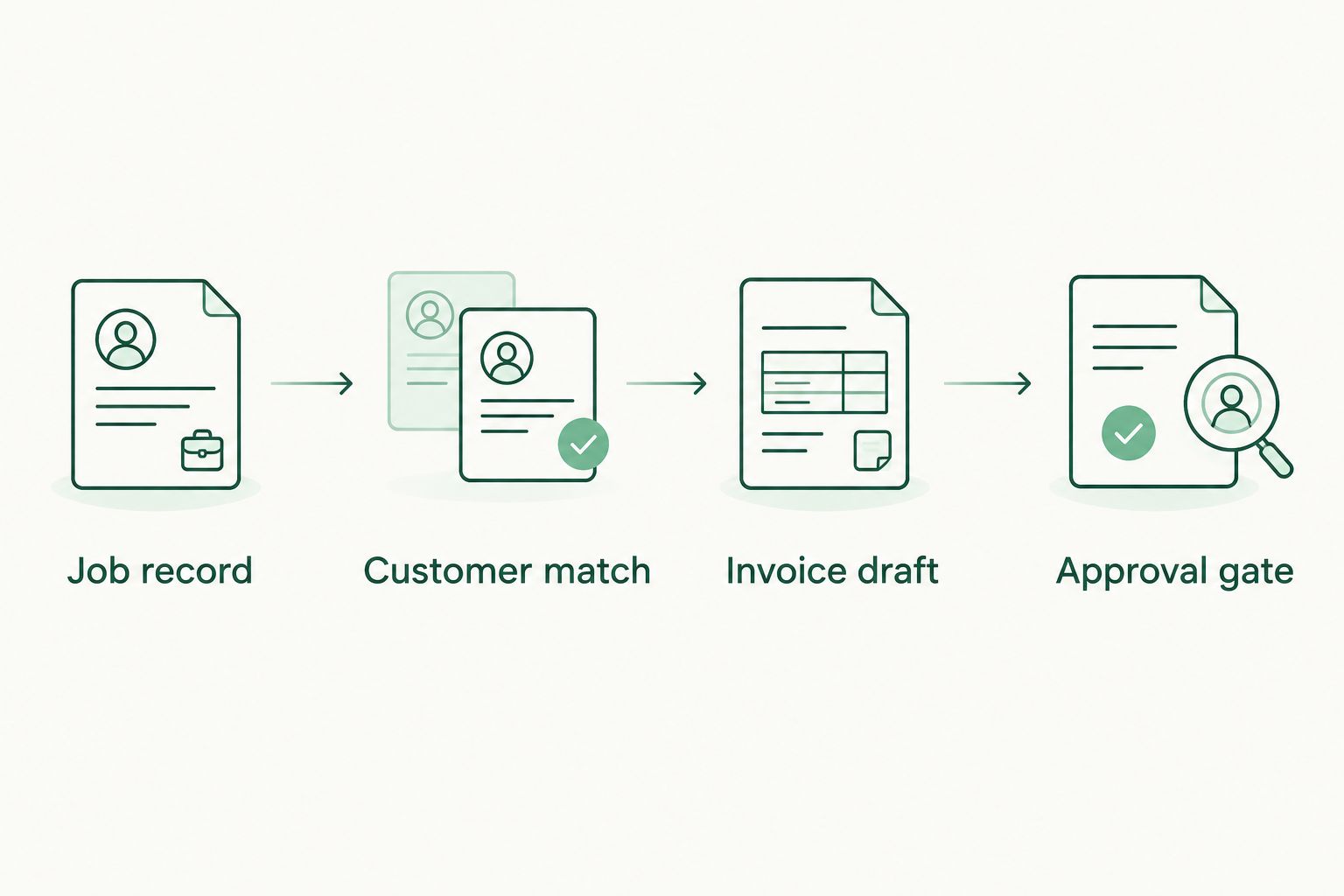
*Keep billing approval separate from the crew’s completion report.*
For your 2026 acceptance test, use 3 test jobs: a straightforward completed job, a job needing a customer match, and a previously invoiced job. The first should create the intended draft; the others should stop for review or reuse the existing record, not create duplicates.
Update an existing invoice when a job changes
A second useful workflow handles approved changes after draft creation. It should update the known invoice, not repeat the creation workflow.
- Start from a changed job that already contains a QuickBooks invoice ID. Require fresh billing approval for changes affecting the invoice.
- Retrieve the existing invoice through the connector’s supported lookup action. Confirm that the invoice belongs to the expected customer and job.
- Review its current accounting state. Route sent, paid, or otherwise finalized invoices to the billing owner rather than overwriting them automatically.
- Update only the fields your process permits. Preserve the customer relationship and job reference unless a reviewer explicitly approves correcting them.
- Record the successful update in the job history and retain the supporting authorization.
Expected result: approved scope changes remain attached to the original job and invoice relationship.
The advantage is less repeated entry when a draft needs correction. The trade-off is greater accounting risk if the workflow changes a record after the customer has received it. Use automatic updates only for drafts your billing process permits you to edit.
Troubleshooting
A duplicate invoice appears
Check whether the trigger fired again after an unrelated job edit. Require billing approval and an empty invoice-ID field before creation. If QuickBooks created the invoice but the source write-back failed, locate the existing invoice before retrying.
The invoice has the wrong customer
Inspect the customer mapping, not just the invoice description. Replace name-only matching with the stored QuickBooks customer ID, then review other jobs using the same mapping before resuming the connection.
A service line fails to map
Check that the selected service item still exists and is usable in the connected QuickBooks company. Repair the mapping to the intended item; do not substitute an unrelated item merely to make the workflow succeed.
The connection stops working
Check the connector’s error record and confirm that its QuickBooks authorization still applies to the intended company. Reconnect through the connector’s supported authorization process, then inspect for partial invoice creation before replaying failed jobs.
The invoice lacks a required reference
Add the missing purchase-order or property reference to the source record and make it part of the approval checklist. Fix the draft before sending it; a successful technical connection does not mean the customer’s billing requirements are satisfied.
Customize your workflow
Once the base workflow passes review, add exceptions deliberately. Separate a single-property job from a customer’s consolidated billing arrangement, and confirm how supporting documents should accompany an invoice before building attachment steps.
Maintain a short 2026 change log covering customer-matching rules, service-item mappings, and approval ownership. When a rule changes, test both a new job and a job with an existing invoice before applying it broadly.
For independent providers connecting with customers through Expelled, keep job authorization and billing responsibilities clear in the provider-customer arrangement. Marketplace discovery and the provider’s accounting workflow serve different purposes.
FAQ
What is the best way to set up QuickBooks junk removal invoicing?
Start with a reviewed invoice-draft workflow based on billing-approved job records. Match the customer, map the approved work, and save the invoice ID back to the job before adding more automation.
Can I connect my junk removal job software to QuickBooks?
You can connect the systems when your job software or a compatible connector supports the necessary QuickBooks invoice actions. Confirm customer lookup, invoice creation, and source-record write-back before building the workflow.
Does this guide require an Expelled integration with QuickBooks?
No. This guide connects your own job records and accounting process; Expelled is a marketplace connecting customers with independent property cleanout, junk removal, and hauling providers.
Should a completed junk removal job automatically send an invoice?
Use billing approval rather than job completion alone to authorize invoicing. Create an unsent invoice first so the billing owner can check the customer, scope, and required references.
How do I prevent duplicate QuickBooks invoices for the same job?
Store the QuickBooks invoice ID against the source job and check it before creating another invoice. Inspect partially completed runs before retrying because invoice creation can succeed even when source-record write-back fails.
How should I invoice a property manager with several properties?
Match the invoice to the party responsible for payment and retain the service location as a job-specific reference. Confirm the customer's billing arrangement instead of creating a new customer for every property address.
Can an approved job change update an existing invoice?
Yes, when your connector supports updates and your accounting process permits editing that invoice. Retrieve the existing invoice by its stored ID and route sent or paid invoices to the billing owner for review.
One last thing
An error message does not prove that no invoice was created. The creation step can succeed while a later write-back fails. Before anyone retries a failed job, search for the existing invoice using the job reference and customer; otherwise, the recovery action can create the duplicate you were trying to prevent.