
Instead of checking lease dates manually, set up an automatic cleanout lease end workflow that creates a review task, collects move-out details, and requests provider confirmation before scheduling removal. For your 2026 setup, automate the administrative handoff—not permission to enter a property or discard belongings.
TL;DR
- An automatic cleanout lease end workflow should trigger a review, not authorize removal of belongings.
- Expelled connects property professionals with independent providers for property cleanouts, junk removal, and hauling.
- Keep lease-end reminders, removal approval, and provider-confirmed appointments as separate records.
- Recheck lease changes before sending a cleanout request or updating an appointment.
Expelled is best for homeowners, property professionals, and businesses seeking connections with independent property cleanout providers. Use Expelled for that connection; build the reminder and approval workflow in systems you control. This guide does not depend on a native connection between your lease records and the marketplace.
Why this matters
A lease end date tells you when an agreement ends. It does not establish that the occupant has left, that you have lawful possession, or that belongings are cleared for disposal.
An automatic reminder is useful because it starts preparation without repeated calendar checks. An automatic dispatch based only on that reminder skips the decisions that determine whether removal should happen.
Separate the workflow into preparation, authorization, and appointment confirmation. You can automate preparation while keeping property access, removal scope, and provider acceptance under human control.
Before you start
- Records and automation access: Use a lease register, spreadsheet, or property-management system you can edit, plus an automation system that supports scheduled checks, conditional branches, and task creation. Confirm those capabilities before building the workflow.
- Job materials and an owner: Assign a responsible property contact. Gather the unit identifier, lease dates, access restrictions, inspection notes, and photos taken with appropriate permission. Keep access codes out of general task descriptions.
- The critical gate: Confirm lawful possession and authority to remove each category of belongings before requesting removal. Lease expiration alone is not that authorization. Follow applicable notice and abandoned-property requirements; get qualified advice when ownership or removal authority is unclear.
The bold field names below are suggested custom labels to create in your own records, not existing interface controls or features attributed to any platform. Match each instruction to the equivalent setting in your chosen automation system.
Lease record configuration
Start with a stable record for each tenancy, rather than a calendar event containing only an address. The tenancy identifier separates a departing occupant's workflow from the next occupant's records.
- Create Tenancy ID, Property address, Unit, Lease end, and Responsible contact fields. Use a unique tenancy identifier even when the property address stays the same.
- Add Lease status, Possession confirmed, Removal authorized, and Provider confirmed. Keep the confirmation fields separate so one approval cannot stand in for another.
- Add Requested appointment, Confirmed appointment, and Workflow status. A date you want is not a date a provider has accepted.
- Add Last processed lease end and Active task ID. Use these to identify a changed lease date and update an existing task instead of repeatedly creating new ones.
For example, set Lease end to August 31, 2026, in a test record. Leave possession, removal, and provider confirmations blank so the initial run cannot treat the job as ready.
Expected result: Each tenancy has a traceable record with separate fields for the lease deadline, removal authority, and appointment confirmation.
Reminder trigger configuration
Use a recurring date check if your automation system supports it. Re-reading current lease records lets the workflow evaluate the latest date rather than relying solely on an old calendar entry.
- Configure a scheduled check to read active tenancy records. Set the relevant property time zone explicitly, particularly if your portfolio spans different regions.
- Set a preparation offset. As a starting configuration—not a service promise—create the review task 14 calendar days before the lease end date. For the example tenancy, that is August 17, 2026.
- Add an eligibility condition: the tenancy must still be ending, and the current lease date must match the date being processed. Exclude renewed or canceled move-outs.
- Before creating a task, check Active task ID. Update the existing task when one exists; otherwise create it, save its identifier, and record Last processed lease end.
Give the task a factual title, such as Review cleanout scope, followed by the property and unit. Its description should request an inspection plan, an access contact, and an initial list of items—not instruct anyone to clear the property.
Expected result: An eligible tenancy creates a preparation task, while another run against the unchanged record updates or leaves that task alone.
Scope and approval configuration
The preparation task should produce a usable job description. A provider needs to understand what is being removed and how the property can be accessed; a lease date alone supplies neither.
- Create Item list, Keep items, Access details, and Scope approval fields. Separate removal items from belongings that must remain. Describe rooms, stairs, elevators, parking restrictions, and bulky objects where relevant.
- Attach inspection photos to the appropriate record with controlled access. Photograph both the removal scope and items designated to remain so the distinction is visible.
- Add a review gate requiring Possession confirmed and Removal authorized before the workflow advances. Require Scope approval from the responsible contact as well.
- If any gate is incomplete, set Workflow status to Awaiting review and notify the responsible contact. Do not interpret a missing response as permission.
Use a separate 2-calendar-day reminder before the example lease end—August 29, 2026—to check whether the inspection and authorization steps are arranged. This reminder is an internal checkpoint, not a provider response deadline.
Expected result: The workflow produces either an approved scope or a visible hold. It never turns an elapsed date into removal authorization.
!Workflow from a lease record through review, scope approval, and provider confirmation
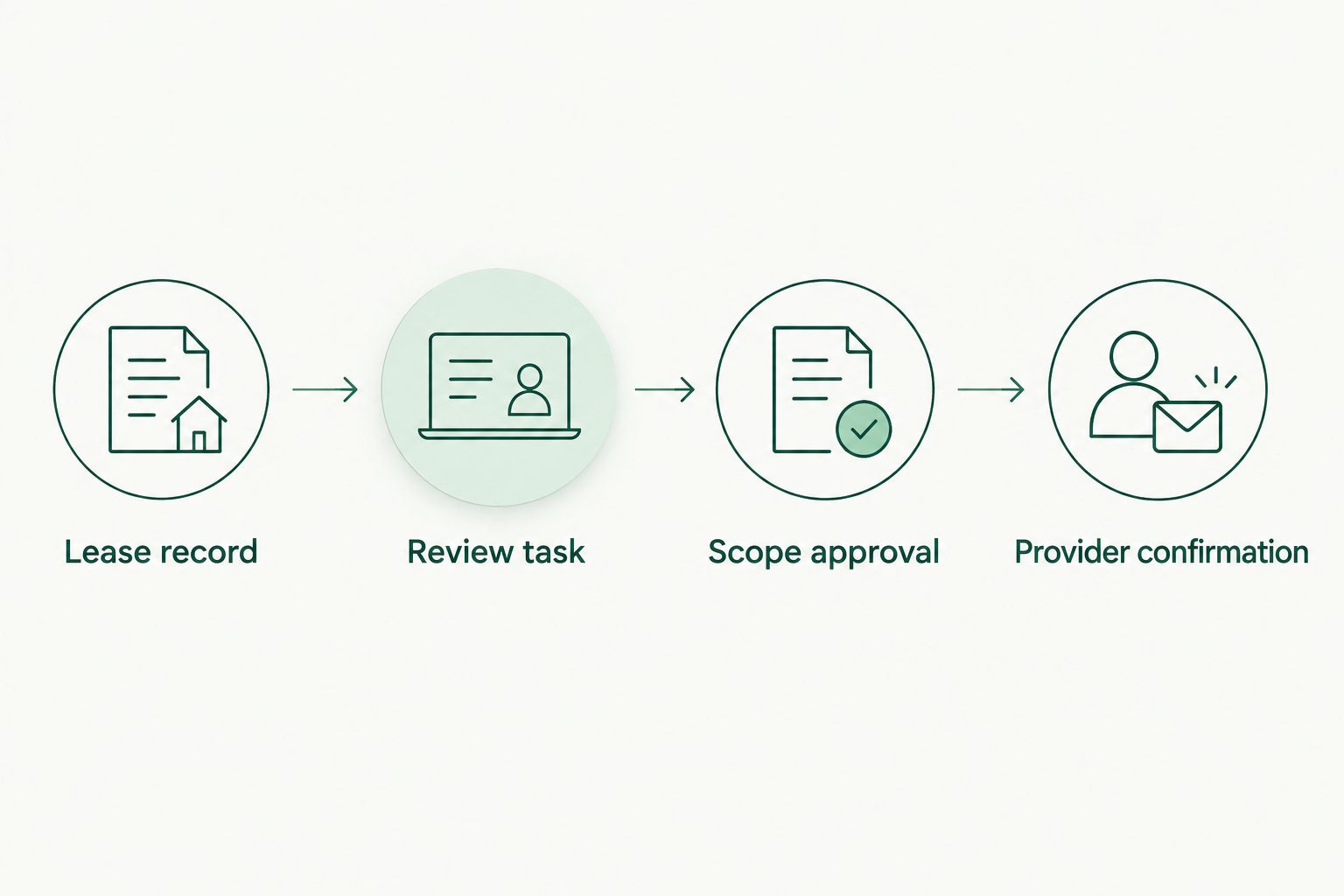
*The reminder starts preparation; approval and provider confirmation remain separate gates.*
Provider confirmation configuration
Once the scope is authorized, move from internal preparation to provider coordination. An internal scheduling task is not a booked cleanout.
- Create a Provider request task containing the approved item list, relevant photos, property details, access restrictions, and requested appointment. Share only the information needed to assess the job.
- Use Expelled to connect with independent providers. Ask each provider to confirm whether the proposed scope and access conditions are acceptable; do not assume the marketplace performs the work.
- Record the selected provider's acceptance and agreed appointment in Provider confirmed and Confirmed appointment. If you propose September 1, 2026, retain that date as a request until the provider accepts it.
- Create the final calendar event only after the required approvals and provider confirmation are recorded. Include the responsible property contact and a reference to the approved scope; restrict sensitive entry information to authorized recipients.
If your systems cannot exchange these records automatically, keep provider communication as a manual handoff. Automating the task that prompts the handoff still removes repeated lease-date checks without pretending an unsupported integration exists.
Expected result: Your calendar distinguishes a requested cleanout from an accepted appointment, and the appointment points to an authorized scope.
A second workflow: update when the lease changes
A lease extension or revised move-out date needs its own branch. Otherwise, the original reminder can remain active after its underlying date becomes wrong.
- Watch for changes to Lease end or Lease status, using a record-change trigger if supported. Otherwise compare current values with Last processed lease end during the scheduled check.
- Recalculate the preparation date and update Active task ID. Close obsolete reminders instead of leaving competing tasks open.
- Return an unconfirmed request to review when the changed date affects scope, access, or timing.
- If a provider already accepted an appointment, create a rescheduling task for the responsible contact. Keep the existing appointment record until a change or cancellation is acknowledged.
Expected result: A changed lease updates internal preparation without silently changing an agreement with a provider.
Choose the branch that matches your record system:
| Workflow option | Best for | Advantage | Limitation | |---|---|---|---| | Scheduled date check | Lease registers with reliable dates but no record-change trigger | Evaluates current records on each run | Changes wait until the next configured check | | Record-change trigger with date checks | Systems that expose lease updates to an automation system | Starts reassessment when a tracked value changes | Requires supported triggers and duplicate prevention |
Neither option replaces removal authorization or provider acceptance. Both need an accountable person to resolve exceptions.
Test before using live tenancy records
Run 3 test cases with notifications directed to an internal recipient. These are acceptance tests for your configuration, not claims about any particular software.
- Ordinary lease end: Use a test tenancy with the approval fields blank. Confirm that preparation begins but no final appointment appears.
- Lease extension: Change the end date after the first task exists. Confirm that the same task is updated and the obsolete reminder is closed.
- Repeated run: Process an unchanged record again. Confirm that it does not produce a second request or calendar event.
Then test the approval path separately: enter authorization and a provider-confirmed appointment in the test record. Check that the final event carries the correct unit, contact, and scope reference.
Keep a record of each test result. Do not activate provider-facing messages until duplicate prevention and approval holds work as intended.
Troubleshooting
Duplicate tasks or appointment requests
Check whether the workflow saves Active task ID before the next run. Use the tenancy identifier and lease date together to identify the same preparation cycle, and update that task rather than creating another.
If parallel runs are possible, use your automation system's supported concurrency controls. Test repeated processing before restoring external notifications.
A renewed tenancy still triggers a cleanout task
Check the status filter and compare the current Lease end with Last processed lease end. A reminder created from an old date needs updating or closure when the tenancy changes.
Do not delete a confirmed appointment without notifying the responsible contact. Handle provider coordination separately from internal task cleanup.
The provider receives an incomplete job description
Make scope approval depend on a completed item list and access details. Replace vague descriptions such as miscellaneous junk with room-by-room descriptions and photos where appropriate.
Ask the provider to identify exclusions or assessment needs before confirming the job. Do not treat household belongings, appliances, debris, and hazardous materials as interchangeable categories.
A calendar event appears without provider acceptance
Check the final-event condition. It must require Provider confirmed, not merely Requested appointment or a completed internal task.
Move an unconfirmed event back to a request record. Notify the property contact so nobody treats it as a confirmed arrival.
Belongings remain but removal authority is unclear
Hold the removal branch. Record the unresolved ownership or authorization question and assign it to the person responsible for resolving it under applicable requirements.
A scheduling deadline is not a reason to bypass that hold. Resume only when the scope and authority are documented.
Customize your workflow
For multiple properties, add portfolio-level reporting on records awaiting inspection, authorization, or provider confirmation. Keep those states separate: they identify different work for different people.
Expelled remains the marketplace connection point, while your records hold the administrative workflow. Use the junk removal guide for property managers to develop the provider-comparison questions that accompany your approved scope.
For recurring turnovers, reuse the job-description template—not the previous tenancy's approval. Carry forward access instructions only after checking that they still apply, and keep each tenancy's photos and authorization separate.
FAQ
Can I automatically schedule a cleanout when a lease ends?
You can automate reminders, review tasks, and appointment creation after approval and provider confirmation. A lease end date alone should not dispatch a provider or authorize removal.
Does Expelled perform the property cleanout?
Expelled connects homeowners, property professionals, and businesses with independent providers offering property cleanouts, junk removal, and hauling services. Confirm the job scope and appointment with the selected provider.
Do I need a direct marketplace integration?
No. Your automation can create an internal task that prompts a person to connect with a provider and record the outcome. That workflow does not require an assumed marketplace integration.
What happens if the tenant extends the lease?
Recalculate the preparation date and update the existing task. If a provider has accepted an appointment, arrange the change with that provider rather than silently moving the calendar event.
What information should I send a cleanout provider?
Send the approved removal list, relevant photos, property and unit details, access restrictions, and requested appointment. Identify belongings that must remain and ask the provider to confirm scope acceptance.
Can belongings be removed as soon as the lease expires?
Lease expiration alone does not establish removal authority. Confirm lawful possession and comply with applicable notice and abandoned-property requirements before authorizing disposal.
How do I prevent duplicate cleanout requests?
Store the active task identifier against the tenancy record and check it before creating another task. Test an unchanged record twice to verify that repeat processing does not create another request.
One last thing
Treat a request, an approval, and a confirmed appointment as different records. That distinction makes the workflow useful even when provider coordination stays manual: you can see exactly what is waiting, who owns the next action, and whether anyone has actually agreed to attend.