
Instead of manually chasing junk removal whenever a move-out date changes, set up a workflow that creates a removal request, assigns an owner, and tracks provider confirmation. For automatic junk removal booking move-out workflows, automate the request—not a confirmed appointment unless the independent provider explicitly accepts it.
TL;DR
- Automatic junk removal booking move-out workflows should create requests before confirming appointments.
- Expelled connects homeowners, property professionals, and businesses with independent providers for junk removal and property cleanouts.
- Require removal authorization, access details, and provider acceptance before marking a job confirmed.
- Update the existing request when a move-out date changes; do not create another booking.
Expelled is best for homeowners, property professionals, and businesses seeking a marketplace connection to independent junk removal providers. Use Expelled to connect with providers; keep the scheduling controls described here in your own operational system. This guide describes a workflow you can configure, not a documented platform integration.
Why this matters
A move-out date tells you when someone plans to leave. It does not establish which belongings can be removed, whether the property will be accessible, or whether a provider has accepted the work.
For your 2026 turnover process, separate three events: the date is recorded, the removal request is approved, and the provider confirms an appointment. Treating them as one event creates a scheduling record without the underlying agreement.
A calendar entry is not provider confirmation. Keep the accepted scope and access window alongside the appointment so the person opening the property knows what was agreed.
Before you start
- System access: Have permission to edit your move-out records and configure the task, calendar, or automation system you already use. Check that the system supports the required trigger and record updates before building anything.
- Job materials: Prepare the property address, responsible contact, removal inventory, photographs, access restrictions, and the person authorized to approve removal. Keep a separate list of belongings that must stay.
- The critical gotcha: A move-out date is not permission to dispose of belongings. Obtain appropriate authorization and check applicable requirements before releasing work; unresolved ownership or possession issues belong on hold.
The field names below are suggested labels for your own records, not buttons or settings in a particular application. Map each label to the equivalent control in your system. If your software cannot perform a step, assign that step to a named person instead.
Move-out trigger and job record
Build this configuration around the property turnover, not around an individual calendar event. You need one continuing record that survives date changes and provider discussions.
- Choose the source record. Use the record where your team maintains the move-out date. Avoid copying dates between separate spreadsheets and calendars without identifying which source controls scheduling.
- Create a stable identifier. Add a Turnover ID that stays unchanged when the date changes. Use it to maintain 1 active removal request per turnover, rather than treating every edit as a new job.
- Map the required fields. Include Move-out date, Property address, Job owner, Removal scope, Keep items, Access window, and Removal authorization. Store photographs with the job or in an access-controlled location referenced by it.
- Define the trigger. Configure the workflow to act when the move-out date is first recorded and the job has an assigned owner. The first action should create a draft task, not dispatch a provider.
- Add the release checks. Require both a defined removal scope and recorded authorization before the task advances to provider outreach. Send incomplete records back to the job owner with the missing fields identified.
Expected result: Entering a move-out date creates a draft removal task linked to the original turnover. An incomplete or unauthorized job stays out of provider scheduling.
For a 2026 setup, test with a fictional property record before enabling the workflow on live turnovers. Keep test contacts separate from actual provider contacts so a test cannot send a real request.
Request routing and provider selection
A complete request gives independent providers something specific to assess. Automating an incomplete message simply moves the clarification work into email or phone calls.
- Prepare the job brief. State what needs removal, what must remain, where items sit, and whether stairs, elevators, locked areas, or restricted loading affect access. Distinguish a whole-property cleanout from removal of selected items.
- Assign the communication owner. Use Job owner for the person who answers provider questions and approves changes. Include the person providing physical access separately if those responsibilities differ.
- Create an outreach task. Have the workflow notify the owner that the request is ready. Connect with independent providers through the marketplace, then communicate the scope through the channel agreed with the provider. Do not assume an automated submission connection exists.
- Compare responses against the same brief. Ask each provider to confirm the accepted items, exclusions, access assumptions, and proposed appointment window. If the scope changes, send the revision before making a selection.
- Record a selection decision. Store the chosen provider and the reason the response fits the job. Keep unanswered questions visible rather than treating a response as acceptance.
Expected result: A named owner has a complete request and a documented provider response. The job remains unconfirmed until both sides agree on the work and appointment.
The junk removal for property managers guide provides a related reference for organizing property-level removal work.
Choose the right handoff
Use the following options to decide how much of your 2026 process should run without manual intervention. These are workflow designs, not claims about integrations offered by Expelled.
| Workflow option | Best for | Advantage | Limitation | |---|---|---|---| | Internal task creation | Teams standardizing move-out follow-up | Assigns responsibility without sending an external request | The owner still needs to contact providers | | Approved request handoff | Teams with a repeatable job brief | Sends complete information through a supported, agreed channel | Requires verified sending capability and authorization checks | | Accepted appointment logging | Teams tracking provider commitments | Keeps the agreed appointment attached to the turnover | Depends on an actual acceptance message or supported booking connection |
Start with internal task creation. Add external sending only after verifying how the receiving channel works, what constitutes acceptance, and who handles failures. Expelled connects users with independent providers; the workflow should not represent the marketplace as the company performing the cleanout.
Confirmation and completion controls
Separate requesting, confirming, and completing the work in your records. Each status should describe evidence you actually have.
- Define request statuses. Use Draft, Ready for outreach, Awaiting acceptance, Confirmed, On hold, and Completed, or equivalent labels in your system. Do not map a successfully sent message directly to Confirmed.
- Require acceptance evidence. Record the provider contact, accepted scope, agreed date or window, and the message or record supporting that agreement. Resolve unanswered questions before advancing the status.
- Apply 2 confirmation checks. First, verify that the provider accepted the current scope. Second, verify that the property contact can provide access during the accepted window. A failure in either check keeps the request unconfirmed.
- Create the calendar entry. Add the agreed window and a reference to the job record. Restrict sensitive access instructions to the people who need them rather than placing door codes in a broadly shared calendar.
- Assign completion review. After the appointment, ask the responsible person to verify the agreed removal and record anything left unresolved. Mark the work completed only after that review.
Expected result: Every confirmed appointment has an accepted scope and an access plan. Every completed job has a recorded review rather than an assumed outcome.
The process follows a simple sequence: Move-out record, Scope review, Provider acceptance, Access check, and Completion review. Keep that sequence visible to everyone handling a turnover.
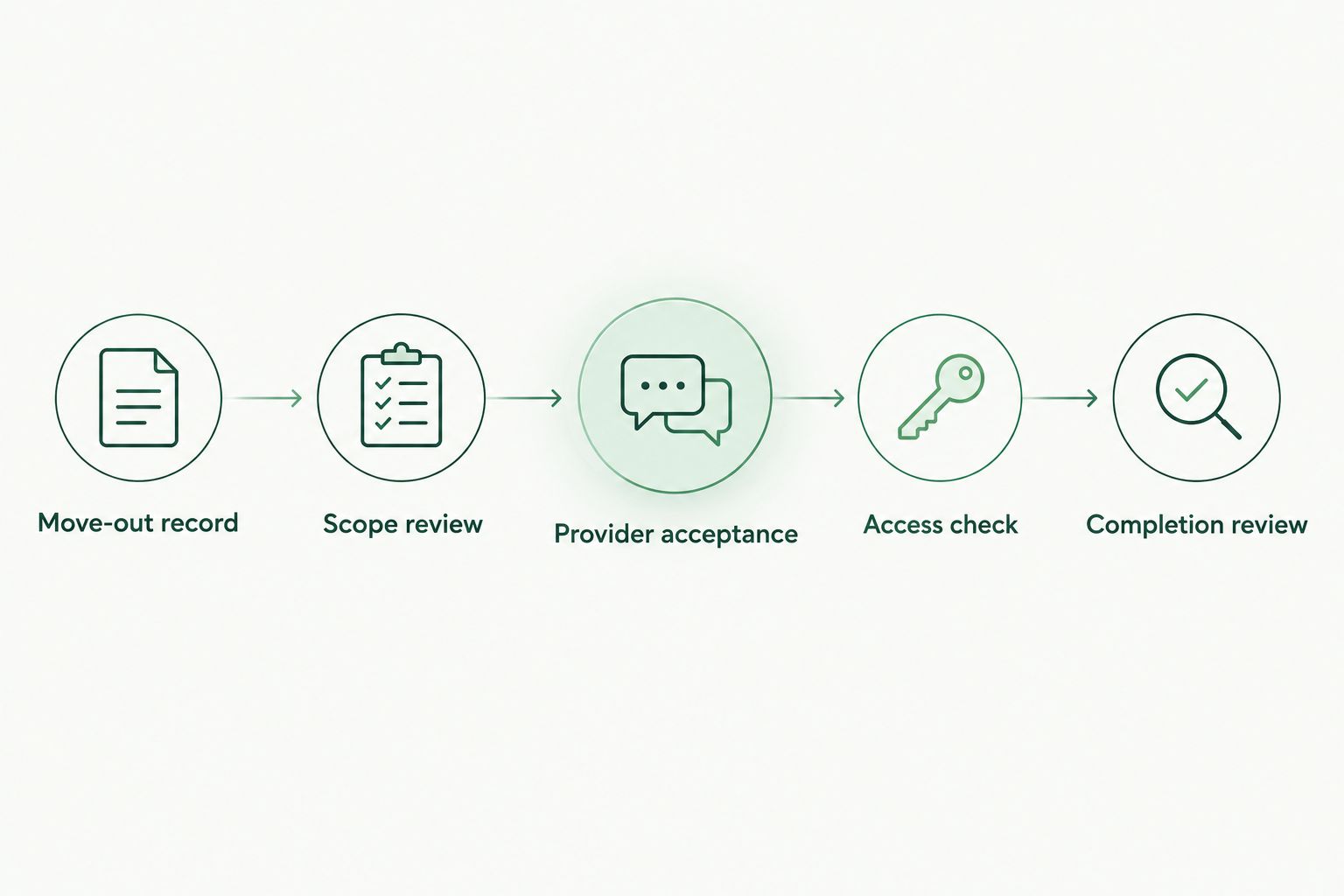
*Provider acceptance and access checks come before treating the removal as confirmed.*
When the move-out date changes
Date changes need a separate update path. Otherwise, the same trigger that creates a useful first request can create duplicate work.
- Find the existing removal record using Turnover ID. Update that record rather than creating a second request.
- Compare the revised move-out date with the accepted access window. Flag a conflict for the job owner instead of silently moving an appointment.
- If provider acceptance is already recorded, send a change request through the agreed channel. Preserve the original agreement until the provider acknowledges a revision or cancellation.
- Set the record to On hold when access or authorization is unresolved. Remove obsolete internal reminders, but do not assume deleting a calendar event cancels a provider commitment.
- Record the revised agreement and notify the property contact. Keep enough history to distinguish the original request from the accepted change.
Expected result: The turnover retains one current removal record, and a changed date does not masquerade as an accepted reschedule.
For example, changing a move-out from September 18, 2026, to September 21, 2026, should trigger a scheduling review. It should not automatically tell the property contact that the provider has accepted the later date.
Troubleshooting
A date edit creates another request
Fix: Match records using the stable turnover identifier before creating anything. Where your system supports it, use an update-or-create action; otherwise, require the owner to check for an existing record before outreach.
The job is confirmed but nobody accepted it
Fix: Remove the rule that treats a sent message or created calendar event as confirmation. Require acceptance evidence and return affected jobs to Awaiting acceptance until the agreement is documented.
The provider arrives but cannot enter
Fix: Assign an access contact and record the accepted entry arrangement before confirming. Include building restrictions in the job brief and recheck access when the move-out date changes.
The provider receives an outdated inventory
Fix: Keep the current removal scope in the main job record and identify revisions in follow-up messages. Ask the provider to acknowledge material changes before treating the earlier acceptance as sufficient.
The workflow stops without notifying anyone
Fix: Configure failure notifications to reach the job owner or another designated person. Keep a manual review list of unresolved requests so a failed action does not leave the turnover without follow-up.
Customize your workflow
Keep 3 test cases in your 2026 operating checklist: a new authorized move-out, a date change after provider acceptance, and a canceled turnover. Verify both the status changes and the messages each case produces. A successful task creation alone does not prove the full process works.
For apartment turnovers, add building access and property-contact fields. For office moves, separate items approved for removal from equipment or records awaiting another decision. For whole-property cleanouts, divide the scope by room so the owner can review it before outreach.
Expelled's junk removal marketplace provides a way to connect with independent providers, but the appointment still needs an agreed scope and acceptance. Its role is provider connection, not a substitute for your authorization, access, or confirmation controls.
FAQ
Can I automatically book junk removal when a move-out date is set?
You can configure a workflow to create a removal request when a move-out date is set. Treat the appointment as confirmed only after an independent provider accepts the current scope and appointment window.
Does Expelled perform the move-out cleanout?
No. Expelled is an online marketplace that connects homeowners, property professionals, and businesses with independent providers offering property cleanouts, junk removal, and hauling services.
What information should an automatic move-out removal request include?
Include the property address, removal inventory, keep-item list, photographs, access restrictions, responsible contact, and removal authorization. Give the provider enough information to assess the actual work rather than just the move-out date.
What happens if the tenant changes the move-out date?
Update the existing removal request and ask the provider to acknowledge any scheduling change. A changed date in your system does not establish an accepted replacement appointment.
Can I remove everything left behind after a move-out?
Do not treat a move-out date as authorization to remove belongings. Establish who can authorize disposal and check applicable requirements before releasing the job.
How do I prevent duplicate junk removal bookings?
Use a stable turnover identifier to find and update the existing request. Review any already-confirmed commitment before sending another request or changing the appointment.
Do I need an integration to use this workflow?
No. You can use internal tasks and manual provider communication where automated connections are unavailable. Verify any proposed integration before relying on it to send requests, receive acceptance, or process cancellations.
One last thing
The safest automatic action is often a hold, not a booking. If the scope, authorization, or access is unresolved, a useful workflow identifies the missing decision and assigns it to someone. It does not turn an uncertain move-out into an appointment nobody agreed to.